Vonage RCS
Vonage RCS (Rich Communication Services) is an advanced messaging channel provided by Vonage that upgrades standard SMS with interactive features like rich cards, carousels, suggested actions, media sharing, and verified branding.
Integrating AI Agents with Vonage RCS enables businesses to deliver engaging, conversational customer experiences directly within native mobile messaging applications, improving user interaction while maintaining secure communication workflows.
Prerequisites
- You built and published an AI Agent.
- You have an active Vonage account with RCS capabilities enabled.
Integrate Druid with Vonage RCS
To integrate Druid with Vonage RCS, follow these:
Step 1. Get the channel URLs from the Druid Portal
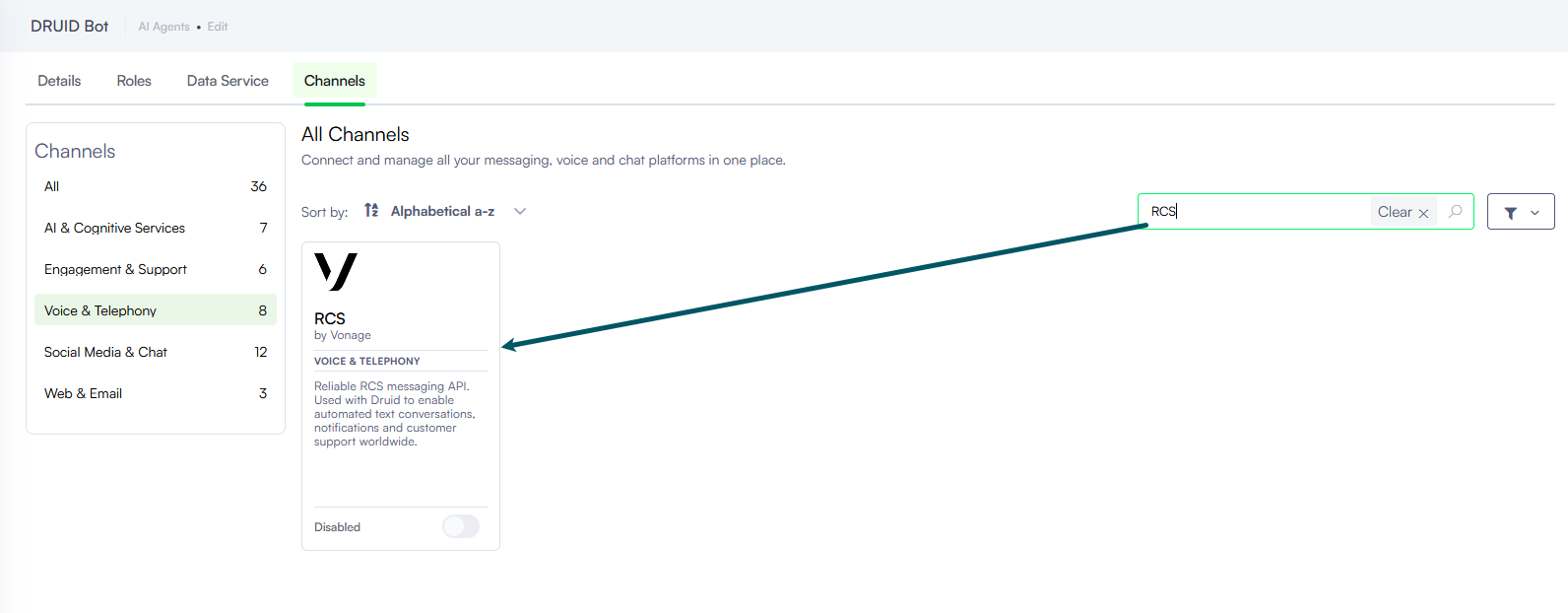
Go to the AI Agent details page and click on the Channels tab. Then, search for RCS and click on the card.
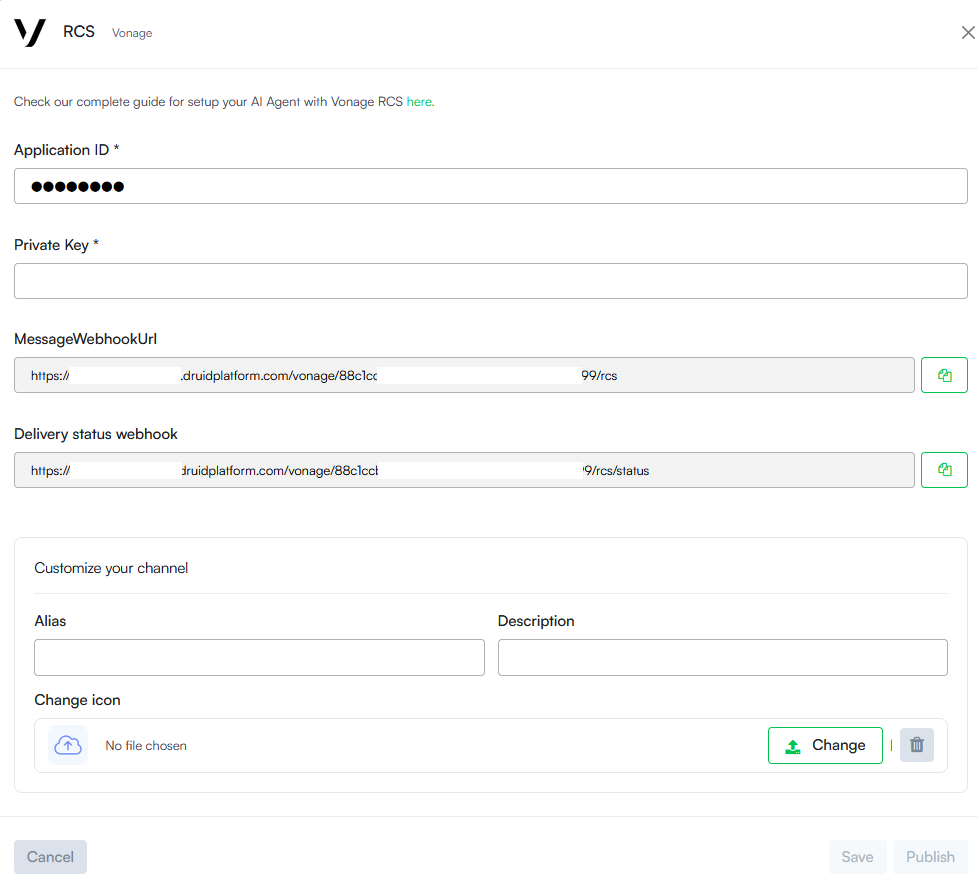
From the channel configuration modal, copy the Message Webhook Url and Delivery status webhook, as you’ll need them to configure your Vonage application.
Step 2. Create and configure a Vonage application
To integrate Vonage RCS with Druid, you need to configure a Vonage application. This involves adding channel URLs from the Druid Portal, and retrieving API private key. Follow the steps below to complete the setup:
- Log in to the Vonage Portal.
- Go to BUILD > Applications.
- In Your applications page, click the Create a new application button.
- Enter a name for your application.
- Turn on the Messages toggle and enter the two URLs as follwos:
- Inbound URL - Enter the Message Webhook Url you copied from the channel configuration modal in the Druid Portal.
- Status URL - Enter the Delivery status webhook you copied from the channel configuration modal in the Druid Portal.
- Click the Generate new application button to create the app.
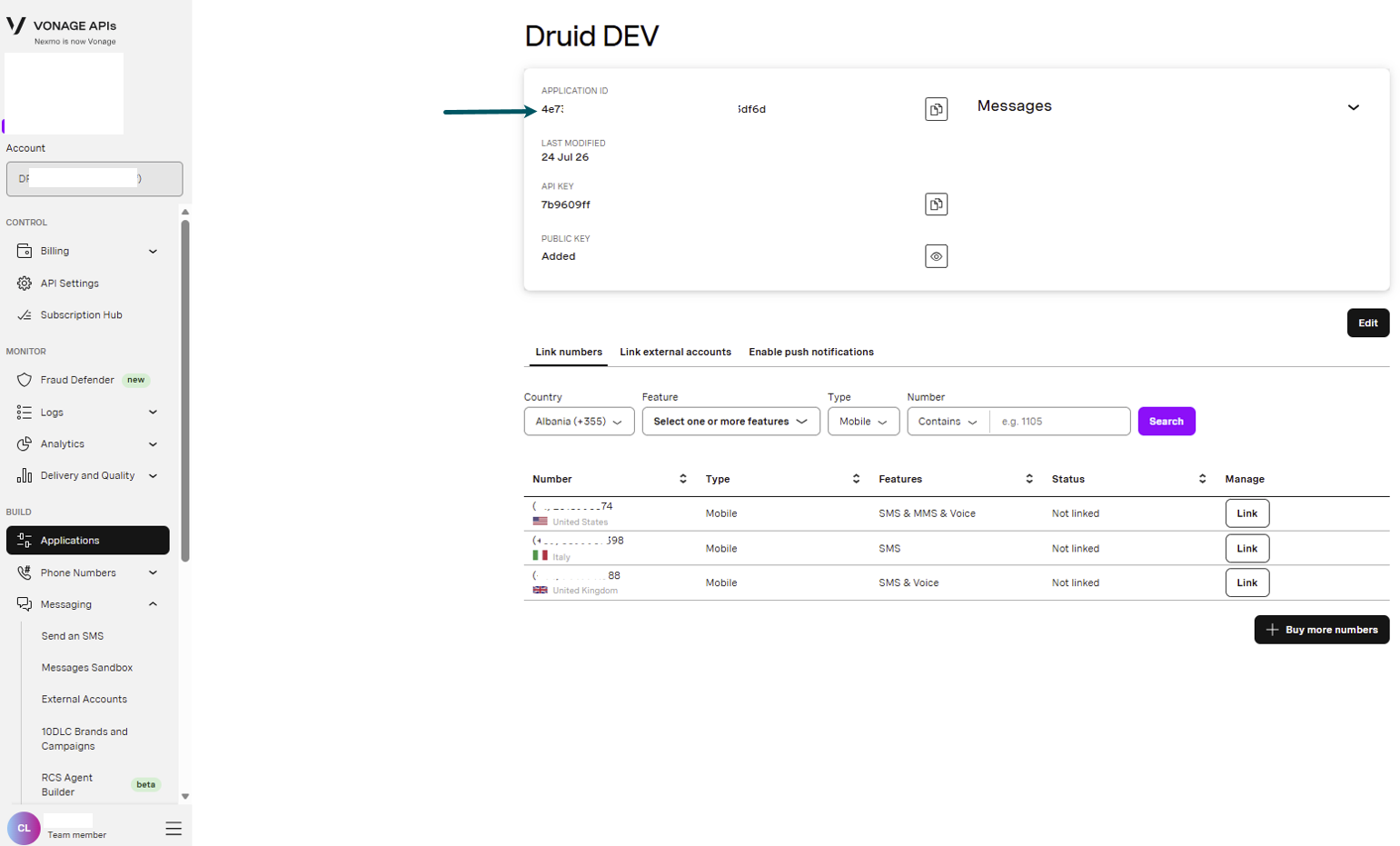
- Note down the Application ID, as you’ll need it to configure the channel in the Druid Portal.
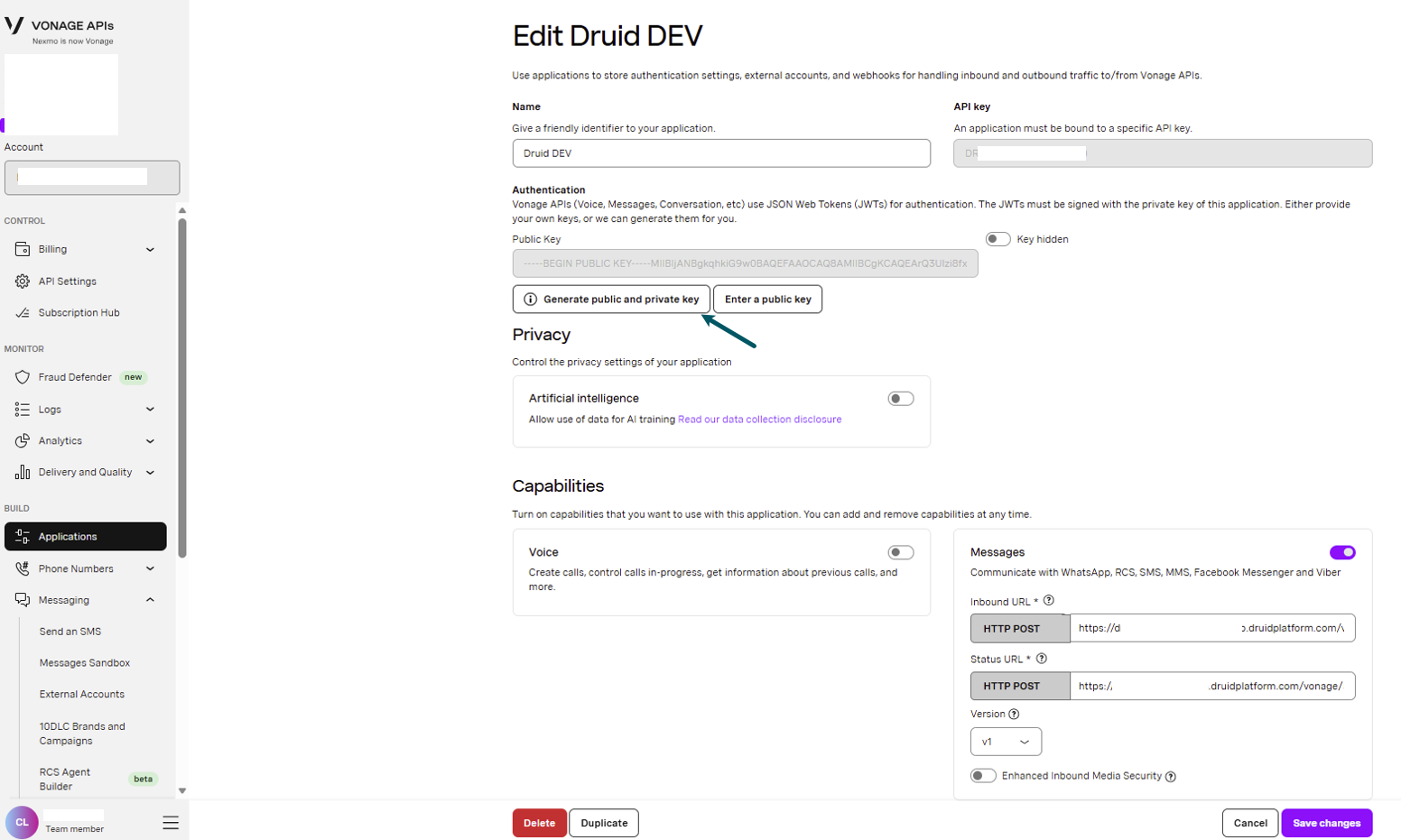
- Go back to your app configuration page ( BUILD menu > Applications > your app).
- Generate public and private key.
- The private key is downloaded on your computer.
Step 3. Create RCS Agent
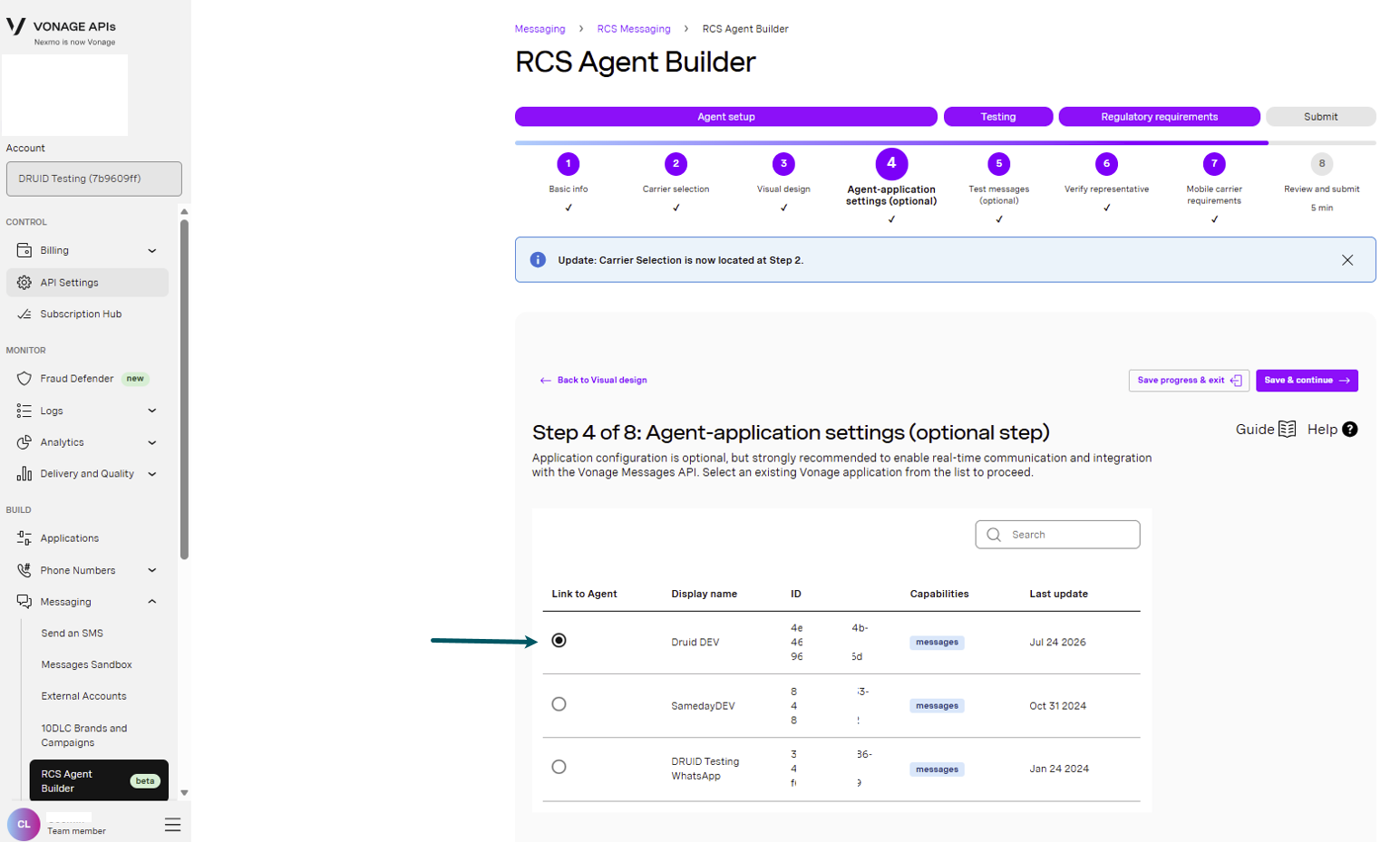
- In the Vonage Portal, go to Messaging > RCS Agent Builder.
- Click the Build a new RCS agent button at the top-right corner of the page.
- Configure your RCS Agent by following the Vonage setup wizard. For more information, see Vonage instructions.
- On Step 8 of the wizard (Agent-application settings), select the application you created for Druid integration from the application list to link the app to RCS messaging.
- Save your changes and complete the RCS Agent setup.
If the Build a new RCS agent button is unavailable, RCS is not enabled for your account. To request access, click Contact us to get started with RCS and follow the on-screen instructions.
Step 4. Activate the Vonage Voice channel in Druid
To activate the Vonage Voice channel, follow these steps:
- Go to the AI Agent details page and click on the Channels tab.
- Search for RCS and click on the card.
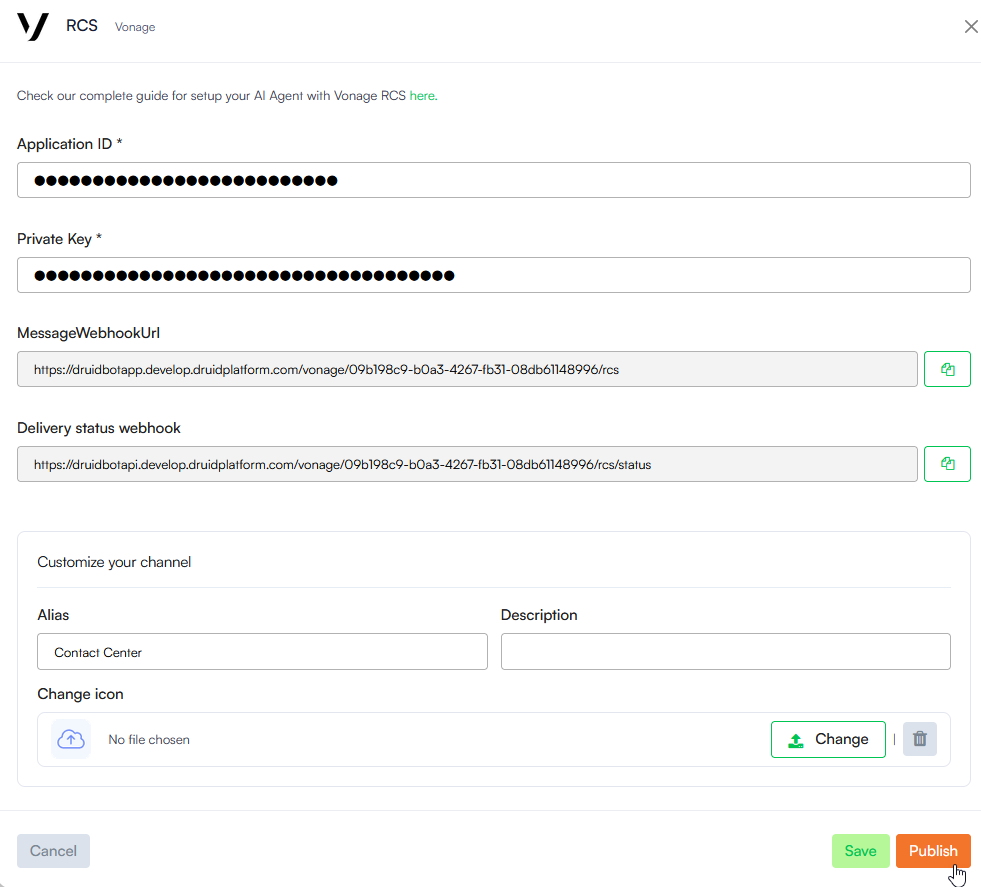
- In the channel configuration modal, enter the Application ID you copied from Vonage and the Private Key from the file you downloaded when generating the app private key in Vonage.
- Optionally, customize channel display settings as follows:
- Alias: Enter a clear, business-friendly display name (e.g., Interactive Messaging). This value is stored in[[ChatUser]].ChannelDisplayName, which appears in reporting tools like AI Agent Summary dashboard - Engagement KPIs and can also be referenced in flow business logic.
- Description: Enter a brief description. This is particularly helpful when using an alias, as it helps identify the channel's specific purpose within the Druid Portal.
- Channel Icon: Upload a custom icon to display on the channel card within the Druid Portal.
- Click the Publish button to activate the channel.
After the channel’s activation, the following fields are available in Druid:
- [[ChatUser]].ChannelId - "vonage-rcs"
- [[ChatUser]].UserId - Stores the user's phone number in international format.
- [[ChatUser]].ChannelDisplayName - Stores the Alias which is used in AI Agent Summary Dashboard > Engagement KPIs > Channel chart.